
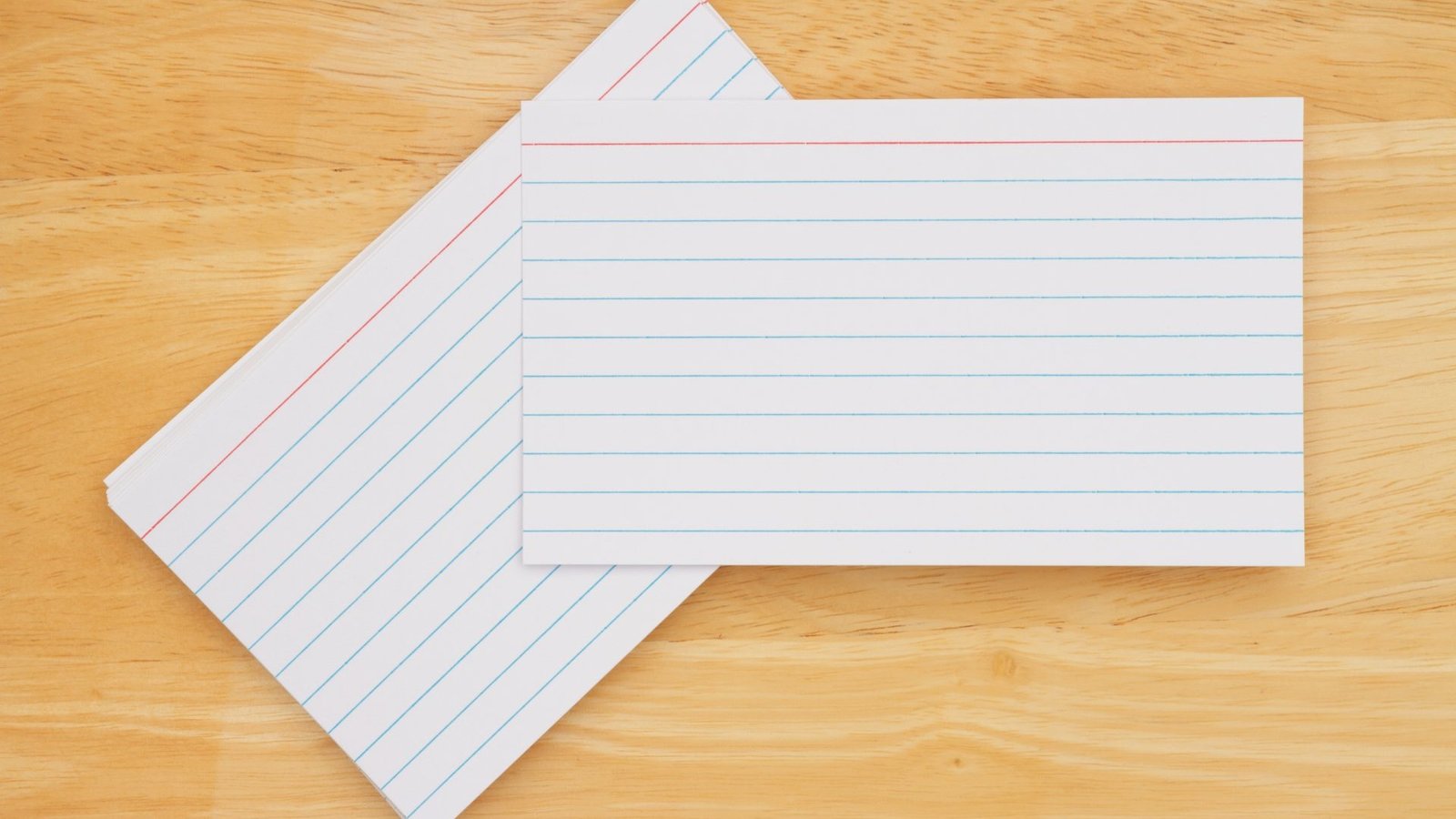
Printing on small cards sounds simple until your printer refuses to cooperate. Settings do not match, cards jam, or the text lands halfway off the edge. I have been there. In this guide I will walk through how to print on 3×5 index cards in a way that actually works, without a bunch of trial and error.
You will see the phrase how to print on 3×5 index cards a few times here on purpose. That is the exact setup we are talking about, whether you are making study notes, recipes, or flashcards for kids.
Check your printer can handle 3×5 index cards
First, make sure your printer supports that small size. Check the manual or the paper tray itself for a range of supported paper sizes. Many home inkjet printers have an adjustable rear or front slot that will accept 3 by 5 inch stock. Some laser printers do not go that small or are very picky about thickness.
If your printer has a manual feed slot, use it. Set the guides snug against the card so it cannot wiggle. Load only a few index cards at a time. If the printer officially does not support 3×5, skip ahead to the workaround section.
How to print on 3×5 index cards in Word
Microsoft Word is still the most common place people set these up.
- Open a new blank document.
- Go to Layout, then Size, then look for an index card option. If you see “Index card 3×5 in” choose it.
- If it is not there, pick More Paper Sizes and enter Width 5 in and Height 3 in, or swap them if you want the card in portrait.
- Set margins to something small like 0.5 in, since there is not much space on an index card.
- Type your content and center it or use simple formatting so nothing is too close to the edges.
When you are ready to print, open the Print dialog and make sure the printer properties also use a 3×5 or custom 3 by 5 paper size. The document and the printer must agree or the printer will try to place the card art on a full letter sheet layout.
Choose the correct feed slot in the printer settings, usually called Manual, Rear, or Bypass, and match the orientation to how you are actually feeding the card. Do a single test print first.
Using Google Docs or other software
Most other word processors work the same way:
- Open Page setup.
- Choose a custom page size of 3 in by 5 in.
- Set small margins and the orientation you want.
- Type your text, then print using the matching 3×5 paper size in the printer dialog.
If you ever see “Letter” or “A4” in the print preview while you are trying to print on cards, your settings still do not match.
If your printer will not take 3×5 cards
Some printers refuse to grab small cards at all. In that case, create a layout that prints several cards on a full letter page, then cut them apart.
A simple way is to:
- Set the document to Landscape on letter size.
- Insert a 2 by 2 table.
- Set each cell to 3 inches high and 5 inches wide.
- Type a different “card” in each cell.
Print on regular letter paper or card stock, then cut along the table borders. You still get 3×5 cards, you just cut them yourself instead of feeding individual index cards through the printer.
Troubleshooting common problems
If the text is off center or cut off, recheck:
- Page size in your document. It must be exactly 3 by 5 inches.
- Paper size in the printer dialog. It must match the document.
- Orientation. Portrait versus landscape needs to match how the card goes into the tray.
For repeated jams, try:
- Fanning the stack of cards so they are not stuck together.
- Loading a single card at a time.
- Using a slightly thinner or smoother card stock if your current cards feel very stiff.
Once you get one good result, save that file as a template. The next time you wonder how to print on 3×5 index cards you can just open the template, change the text, and print again.