
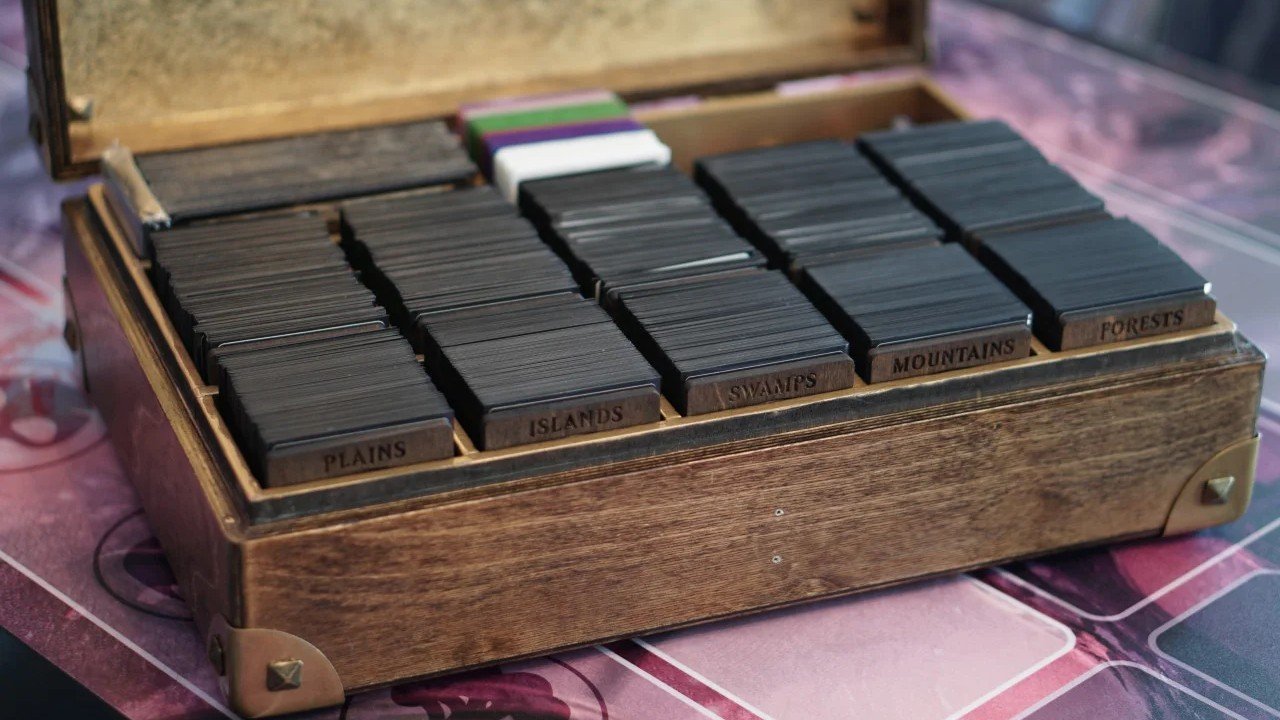
The fastest way to ruin a Saturday is deciding to cut 540 tiny rectangles “real quick.” If you’re trying to print an mtg proxy cube, you can absolutely do it. You just need to pick the right method for your patience level, budget, and how much you hate paper trimmers.
A proxy cube is basically a normal cube draft setup (360, 450, 540, 720 cards, whatever), except the expensive stuff is printed instead of bought. This is perfect for powered cubes, “I want to test 30 archetypes” cubes, or “my friends keep spilling drinks” cubes.
Below are three realistic ways to make proxy cards, plus the print settings and file prep that save you from the classic problems: off-size cards, blurry text, and the dreaded white sliver from bad cuts.
The three methods at a glance
| Method | Best for | Upfront effort | Final feel (sleeved) | Cube size sweet spot |
|---|---|---|---|---|
| Professional printing (MPC, PrintMTG) | A full, durable cube | Low to medium | Closest to real cards | 360 to 720+ |
| Home printer + sleeves | Cheap and fast testing | Medium to high | Great if sleeved | 60 to 540 |
| Sticker method | Small batches and tweaks | High | Fine, but inconsistent | 5 to 200 |
If you only want one recommendation: for a full 360 to 720 card cube, professional printing is usually the least painful overall.
Before you print an mtg proxy cube: the rules and the social contract
Two quick reality checks:
- Proxies are for casual play, playtesting, and your own cube nights. In sanctioned Magic events, you generally need real cards. Judges can issue a proxy in very specific situations, but players do not bring their own printed proxies to sanctioned events.
- Be clear that your cards are proxies. Don’t sell them as real. Don’t try to make them “pass.” That’s where the hobby stops being a hobby and starts being a problem.
For cube, this is easy. Use opaque sleeves and a custom back. Or stamp “PROXY” on the front. Most playgroups do not care as long as the cards shuffle well and the text is readable.
Method 1: Professional printing to print an mtg proxy cube
If you want a proxy cube that feels like “real cards,” this is the cleanest route. You upload files, pay, and a box of cards shows up. No cutting. No glue. No printer tantrums.
Two common options:
Option A: PrintMTG
PrintMTG is built for Magic players. You pick cards, add them to an order, and they handle the rest. It’s the “I just want the cube in my hands” option.
What I like about this style of service for cubes:
- It’s fast to order compared to building a full MPC project.
- The cards are printed double-sided and arrive cut.
- The backs are usually altered in a subtle way, which is good. It reduces the chance anyone mistakes them for real tournament-legal cards.
Cube-specific tip: watch out for double-faced cards. Some services don’t handle them well, or they treat them as a special case. For DFC-heavy cubes, you might prefer to use checklist cards or run the DFCs as separate “draftable tokens” in a side pile.
Internal read: Draftsim’s PrintMTG review is a good overview of what the ordering experience looks like in real life: Draftsim PrintMTG review
Option B: Make Playing Cards (MPC) with MPCfill or MPC Autofill
MPC is a general custom playing card printer. It’s popular for proxy cubes because it can handle big runs and the per-card cost can be good when you order a lot.
The tradeoff is setup. You need to:
- Prepare images at the right size (including bleed and safe area)
- Upload fronts and backs correctly
- Make sure nothing gets cropped
If that sounds annoying, it is. That’s why tools like MPCfill and MPC Autofill exist. They help automate the boring parts.
What to choose for cardstock
For cube cards, you’ll see a lot of people use:
- S30 (blue core): standard, solid, popular.
- S33 (black core): more opaque, a bit nicer feeling, and blocks light better.
If you’re sleeving your cube in opaque sleeves, both are fine. If you care about the light test or you want extra opacity, black core is the safer bet.
File prep basics for MPC
MPC expects print-ready files:
- Minimum 300 DPI
- A bleed margin (extra image past the cut line)
- A safe area (keep important stuff away from the edge)
The easiest way to not mess this up is to use their templates and follow the bleed and safe area guidance exactly. Don’t eyeball it. Eyeballing is how you get 720 slightly off-center Sol Rings.
Method 2: Home printer proxies with sleeves
This is the classic DIY cube method:
- Generate a PDF with card images arranged in a grid
- Print it on heavier paper
- Cut it out
- Sleeve the paper in front of a real card (basic lands and bulk commons work great)
If you’re learning cube, testing a list, or updating 40 cards at a time, this is hard to beat.
Step-by-step home printing workflow
1) Build your list
Get your cube list into a clean list of card names. If you’re still building the cube itself, Draftsim has a solid cube-building guide here: How to build a cube
2) Turn the list into a printable PDF
Tools like MTGPrint can take a list and output a PDF formatted for printing and cutting. This is the quickest way to avoid manual layout work.
3) Print at the correct scale
This is the most common mistake. If your proxies come out slightly too small, it’s usually because your print settings are doing “fit to page” or “scale to printable area.”
Set scale to 100% (sometimes shown as 1:1). No scaling. No “helpful” printer features.
4) Choose paper that won’t feel like tissue
For sleeved home proxies, 200 to 300 GSM is a good starting range:
- Around 200 GSM can be totally fine if you are sleeving with a real card behind it.
- 250 to 300 GSM feels sturdier and handles ink better.
If your home printer struggles with thick paper, go down a step. Printer jams are not part of the fun.
5) Cut cleanly
Scissors work, but they are slow and inconsistent. A basic paper trimmer is a quality-of-life upgrade you will not regret.
Cutting tips:
- Print one test sheet first.
- Cut the long rows first, then the columns.
- Keep a small trash box next to you. It helps.
6) Sleeve it with a backing card
Slide the printed face in front of a basic land or bulk common, then sleeve the pair.
If you want the whole cube to shuffle the same, use the same sleeves for everything. Opaque sleeves also solve the “my back looks different” problem instantly.
Home printing shopping list
You don’t need fancy gear, but you do need a few basics:
- Cardstock (200 to 300 GSM)
- A paper trimmer
- Sleeves (enough for your cube plus basics)
- Bulk basic lands or cheap commons for backing
- A corner rounder (optional, but nice)
Method 3: Sticker proxies on real cards
The sticker method is exactly what it sounds like:
- Print the proxy face on adhesive paper
- Stick it onto a real Magic card (usually bulk)
Why people do this:
- It feels more like a real card than a paper insert
- It’s great for a few “signature” cards, commanders, or a small upgrade pack
Why it’s not my first pick for a full cube:
- Time. It takes forever at cube scale.
- Alignment. One tiny crooked sticker and you’ll see it forever.
- It can permanently mess up the base card if you try to strip ink first.
A safer sticker workflow
If you want to try this, keep it simple:
- Use clean bulk cards (no curl, no dents)
- Use a good quality sticker sheet meant for printing
- Print a test page and check alignment
- Apply slowly, starting from one edge, and press outward to reduce bubbles
Some people remove the original ink before applying stickers. That can involve solvents and it’s easy to damage the card. If you go that route, do it with proper ventilation and test on true bulk first. And if it starts to shred the card, stop. It’s not worth it.
The print settings that matter more than you think
No matter which method you pick, these are the things that decide whether your proxies look clean or look like they came out of a gas station copier.
Card size, bleed, and safe area
Standard Magic cards are about 63 mm by 88 mm.
For professional printers, you also need:
- Bleed: extra art past the cut line so tiny cutting shifts don’t expose a white edge
- Safe area: keep text, mana symbols, and collector info away from the edge
If you’re using a service like MPC, use their templates. If you’re using a tool like MTGPrint, don’t resize the PDF.
Resolution
Aim for 300 DPI at final size. That’s usually the baseline for clean text and readable mana symbols.
If your source images are low-res, printing them bigger does not magically add detail. It just makes the blur larger.
Color and finish
Home printers vary a lot. If your blacks look washed out, try:
- “High quality” print mode
- Photo paper mode (even if you’re printing on cardstock)
- Letting ink fully dry before cutting and sleeving
For professional printing, you pick a stock and finish and the printer handles consistency. That’s one of the reasons it feels nicer.
Cutting and finishing a large cube without losing your mind
If you’re doing home printing for a full cube, the cutting is the grind.
A few tips that actually help:
- Batch it. Do 60 cards, then stop.
- Keep one “perfect” card as a reference and compare your cuts to it.
- Consider rounding corners. A 1/8 inch corner rounder gets you close to the feel of a real card.
And yes, rounding 540 corners is also a grind. But it makes shuffling better, and it stops the “sharp corner catches the sleeve” thing.
Cube-specific tips most people forget
Use consistent versions and frames
Mixing old border, new border, showcase, and full art is fun, but it can make the draft harder to read at a glance. If your group is newer, keep frames consistent where you can.
Decide how you want to handle double-faced cards
Options that work:
- Use checklist cards
- Use a custom back and print the back face on a separate token card
- Keep DFCs in perfect fits inside opaque sleeves, then use a substitute in the draft pack
Pick one method and stick with it.
Keep a maintenance file
Every cube changes. Keep your final print files or your master list so you can:
- Replace damaged cards
- Print a new batch when you swap archetypes
- Avoid rebuilding the whole project from scratch
Conclusion
To print an mtg proxy cube, you don’t need a fancy setup. You need a plan.
If you want the easiest path to a full 360 to 720 card cube that feels like real cardboard, use a professional service. If you want to test ideas fast and spend as little as possible, home printing plus sleeves is the classic move. And if you like hands-on projects, stickers can be great for small batches.
Whatever you choose, do one test run first. Print 9 cards. Cut them. Sleeve them. Shuffle them. If that feels good, scale up. Your future self will thank you.